Appearance
Setting up Avalara
This page will walk you through setting up Avalara AvaTax for Vino.
Avalara AvaTax is a cloud-based solution automating transaction tax calculations and the tax filing process. Avalara provides real-time tax calculation using tax content from more than 12,000 US taxing jurisdictions and over 200 countries, insuring your transaction tax is calculated based on the most current tax rules.
Connecting to AvaTax
Once you've signed up for AvaTax, you'll need to connect AvaTax with Vino.
In the top right corner, open the user menu, click Settings, and scroll down to Tax Calculation.
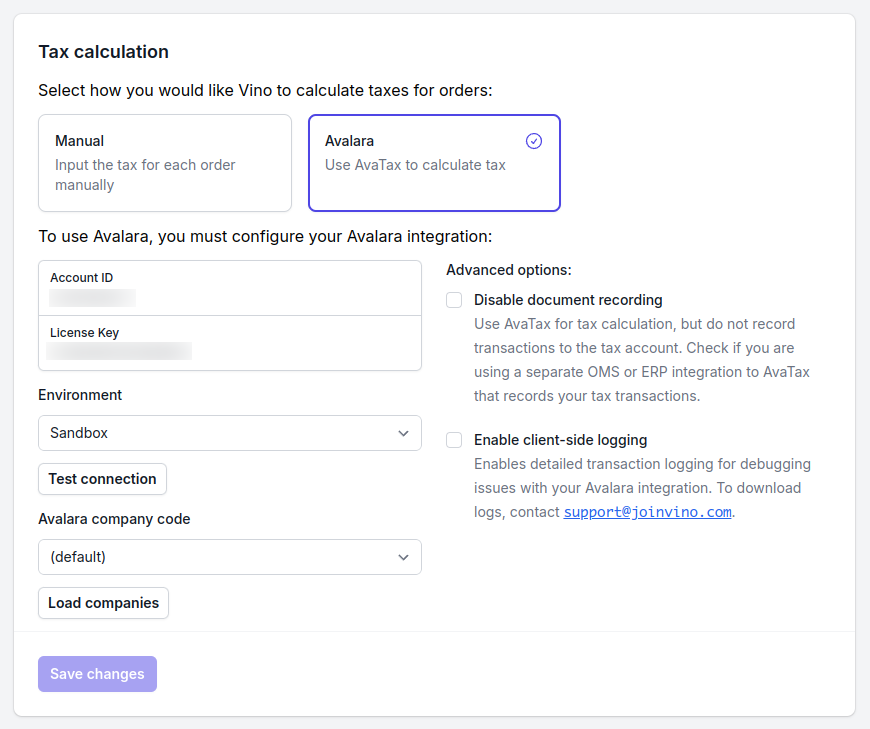
By default, the tax calculation method is set to Manual. Switch this to Avalara, and enter your Avalara credentials:
- Account ID: Provided during your AvaTax account activation process.
- Software license key: Provided during your AvaTax account activation process.
- Environment: Indicate whether this key is for a Sandbox or Production account.
- Company code: If you have a multi-company configuration in Avalara, load your company list using
Load companiesand pick a company code to submit documents to.
To test your configuration settings, click Test Connection.
Additional AvaTax settings
AvaTax also provides two additional settings:
- Disable document recording: When checked, transactions in Vino will NOT commit as transactions in Avalara. Check this if you want to run transactions through Vino that you do not want submitted to Avalara for recordkeeping.
- Enable client-side logging: When checked, this enables detailed debug logging for Avalara transactions. You should only check this when instructed by support.
Assigning tax codes to SKUs
In order to calculate taxes, Avalara needs each line item in a transaction to indicate its associated tax code.
To set a item's tax code, go to the Inventory page, and then click Edit. You can then set the AvaTax code of the item. Make sure to Save your changes once updated.
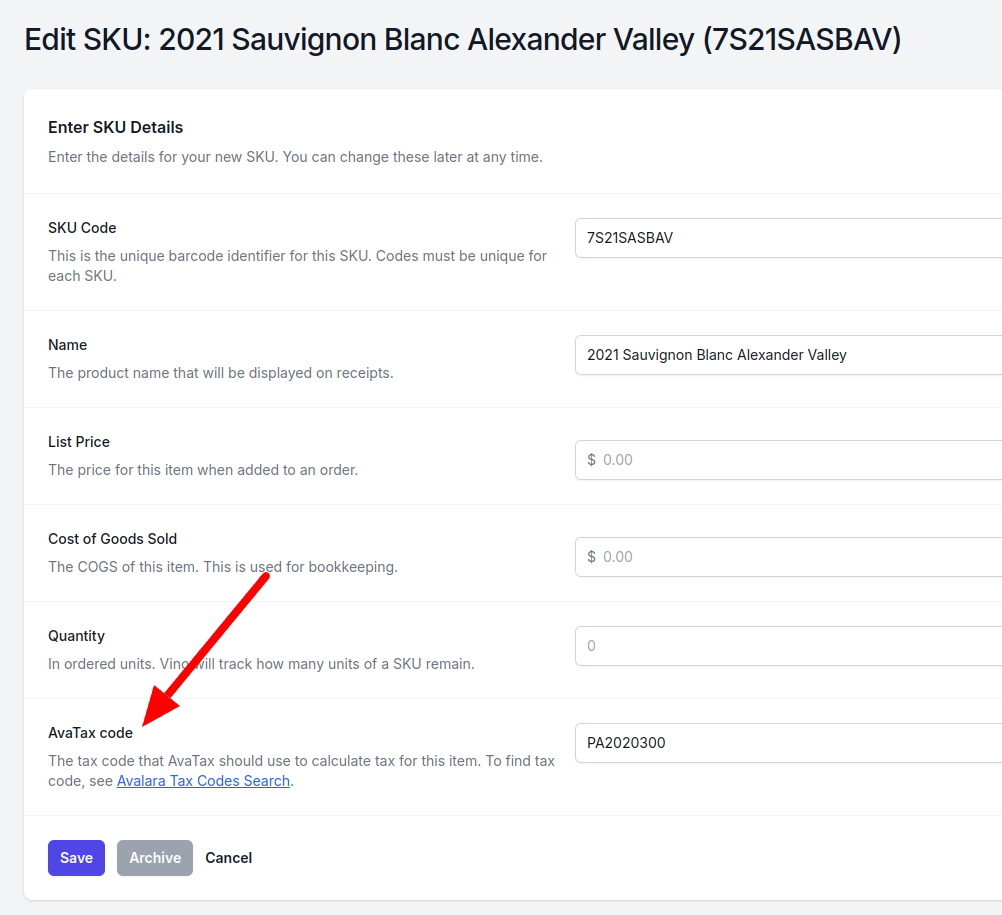
Tax codes can also be set on item creation.
To see a list of available AvaTax codes, use the Avalara Tax Codes Search.
Tax-exempt customers
Some customers (e.g. the federal government) may be exempt from paying sales tax.
Tax-exempt status is indicated using "entity/use codes", which record the reason a customer is tax-exempt. To mark a customer as tax-exempt, you must set their entity/use code in Vino. Avalara provides a list of entity/use codes here, which will also be autocompleted for you in Vino.
To set a customer's tax exemption status, go to the Customers page, then click View and then Edit on the customer. You can then set the Tax-exempt status of a customer in the Billing information section. Make sure to Save your changes once updated.
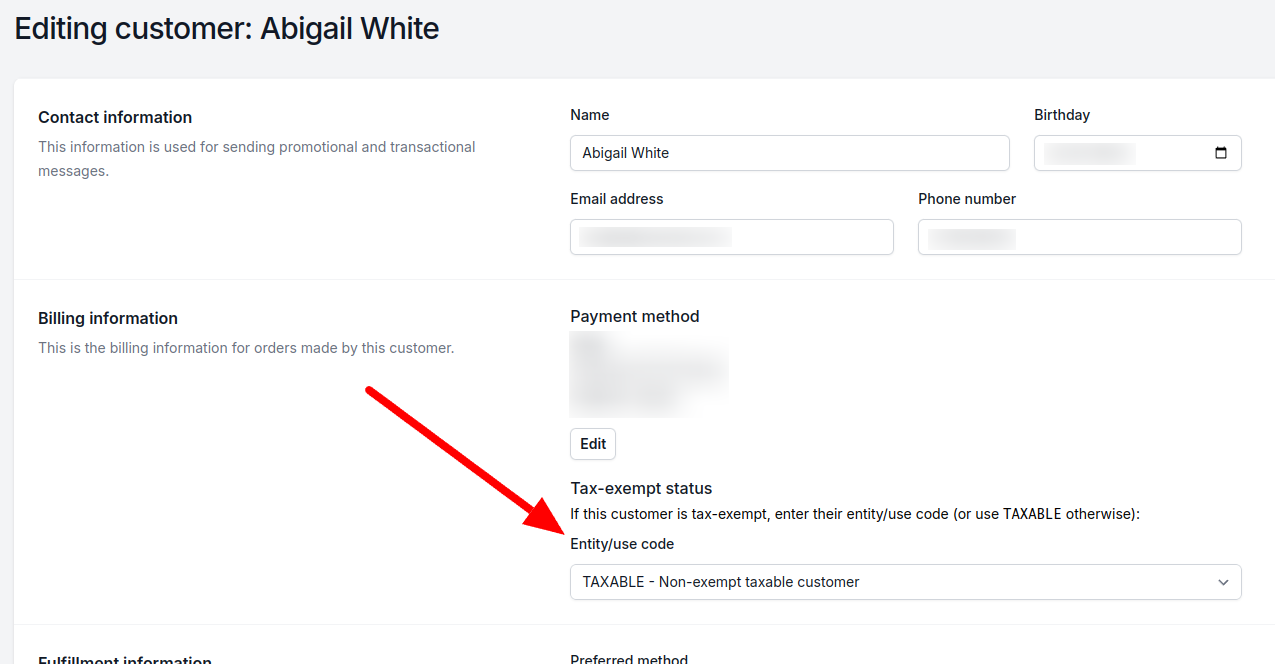
Tax-exempt status can also be set on customer creation.
Validating addresses
AvaTax provides address validation functionality to ensure that it recognizes the address that you're shipping from and to. This is required for correctly calculating jurisdictional tax liability.
In Vino, you can validate all addresses when Avalara is configured. For example, in the Customers page, on the Edit screen, you can validate their Fulfillment information. Similarly, in the Settings page, in the Fulfillment section, you can validate your Ship from address.
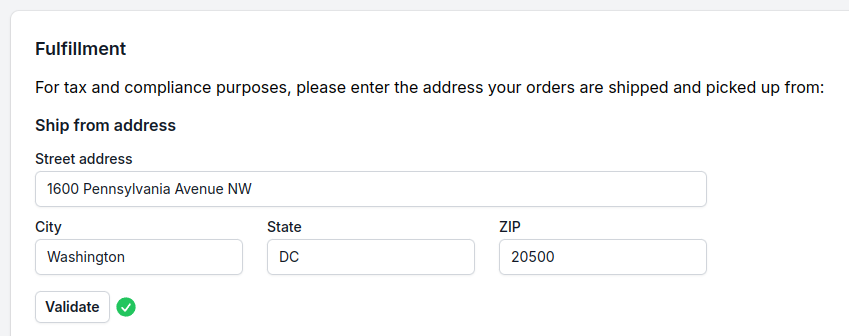
Validation only tells you whether an address is recognized by AvaTax. If AvaTax does not recognize the address, it will provide a feedback message. To correct an invalid address, update the address field as usual and Save your changes.
TIP
You aren't required to use validated addresses. The validation function is purely for your information. If AvaTax does not fully recognize an address, tax calculation will fall back to broader recognized jurisdictions (described here) as long as the address has the minimum elements that Avalara requires.